Governance and administration
Power BI Row-Level Security | How and When to Use
Row-level security restricts which rows each user sees in a Power BI report. Static and dynamic DAX role examples, and who RLS applies to.
Austin Levine
·
Updated
Row-level security (RLS) restricts which rows of a report each user sees, based on a role you define once in the data model. Use it whenever different people need the same report but only their own slice of the data, such as a regional manager who should see only their region, next to a country manager who sees everything.
Static RLS
Static RLS applies a fixed filter to a role. Everyone assigned to that role sees the same rows, no matter who they are. Create it in Power BI Desktop under Modeling > Manage Roles, then write a DAX filter for the table you want to restrict:
[Region] = "West"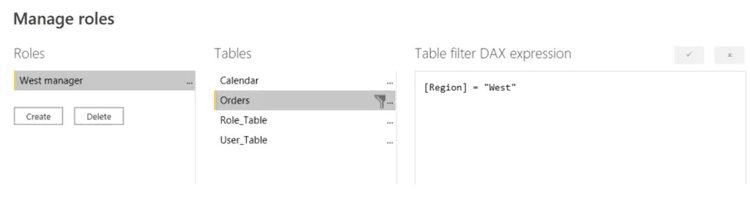
Manage Roles in Power BI Desktop, with a static filter on the Orders table.
After publishing the report, open the workspace, select the dataset's Security option, and add the email addresses of the users who belong to each role. Use Test as Role to confirm the filter behaves as expected before sharing the report.
Dynamic RLS
Dynamic RLS filters rows based on who is logged in, instead of a fixed value per role. The simplest version compares a column directly to the current user:
[SalesRepEmail] = USERPRINCIPALNAME()A more common pattern uses a separate mapping table, so access can change without editing the model. If a UserRegion table maps each email address to a region:
[Region] = LOOKUPVALUE (
    'UserRegion'[Region],
    'UserRegion'[Email], USERPRINCIPALNAME()
)
This way, updating who can see which region is a data change in the mapping table, not a model change. USERPRINCIPALNAME() returns the email address of the signed-in user in the Power BI service; it returns the local Windows account name in Power BI Desktop, so test with Test as Role rather than trusting what you see while editing.
Validating RLS in the Power BI service
After setting up roles in Desktop and assigning members in the service, confirm each role actually restricts what it should. Open the dataset's security settings, select More options next to a role, and choose Test as Role.
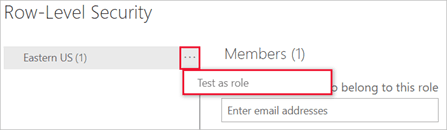
Test as Role in the Power BI service, viewed from the dataset's security settings.
RLS is enforced only for users with the Viewer role on the workspace. Anyone with Admin, Member or Contributor access to the workspace sees unfiltered data regardless of which RLS role they are also assigned to, because those roles carry edit access to the underlying content. Test RLS by adding a Viewer, or by using Test as Role, not by checking what you see as the report's editor.
Why use row-level security
Data privacy. Sensitive rows are visible only to the people who should see them.
Fewer mistakes. Users see only the data relevant to their job, reducing the chance a reader misreads a number that was never meant for them.
Compliance. Many organizations are required to restrict data access by role for regulatory reasons, and RLS is how that requirement gets enforced inside a Power BI report.
Best practices
Assign roles to Active Directory groups rather than individual users, so a person joining or leaving a team does not require a model change.
Keep the DAX filter for each role simple. A complex filter is harder to audit and can slow the report down; see our data modeling best practices guide for how model shape affects filter performance.
Review roles and their members on a schedule, not only when someone asks why they cannot see a page.
Always test with Test as Role, for every role, before sharing a report.
If you have not built the underlying report yet, start with our guide to building Power BI reports, then come back to add RLS once the model is in place.
RLS controls what data a person sees once they are inside the report. It does not control who can open, edit or share the report in the first place; that is set by the workspace role. See our guide to workspace access roles for how the two work together, and our licensing guide for which license level each workspace role requires.
FAQs
Can a user belong to more than one role?
Yes. Power BI combines roles with OR logic: if a user is in both a "Finance" role and a "Management" role, they see every row that either role allows, not only the rows both roles have in common. Keep this in mind when you assign someone to a second role. It broadens what they see, it does not narrow it.
What if I previously created roles and rules for a dataset in the Power BI service? Do they still work if I do nothing?
No. This refers to a legacy path where roles could be created directly in the service. Roles are now defined in Power BI Desktop, or in the service's web modeling for supported data sources, and members are assigned to those roles in the Power BI service afterward. If a dataset only has roles from the old service-based path, recreate them in Desktop and republish.
Sources
Row-level security (RLS) with Power BI - Microsoft Learn
Row-level security (RLS) restricts which rows of a report each user sees, based on a role you define once in the data model. Use it whenever different people need the same report but only their own slice of the data, such as a regional manager who should see only their region, next to a country manager who sees everything.
Static RLS
Static RLS applies a fixed filter to a role. Everyone assigned to that role sees the same rows, no matter who they are. Create it in Power BI Desktop under Modeling > Manage Roles, then write a DAX filter for the table you want to restrict:
[Region] = "West"Manage Roles in Power BI Desktop, with a static filter on the Orders table.
After publishing the report, open the workspace, select the dataset's Security option, and add the email addresses of the users who belong to each role. Use Test as Role to confirm the filter behaves as expected before sharing the report.
Dynamic RLS
Dynamic RLS filters rows based on who is logged in, instead of a fixed value per role. The simplest version compares a column directly to the current user:
[SalesRepEmail] = USERPRINCIPALNAME()A more common pattern uses a separate mapping table, so access can change without editing the model. If a UserRegion table maps each email address to a region:
[Region] = LOOKUPVALUE (
    'UserRegion'[Region],
    'UserRegion'[Email], USERPRINCIPALNAME()
)
This way, updating who can see which region is a data change in the mapping table, not a model change. USERPRINCIPALNAME() returns the email address of the signed-in user in the Power BI service; it returns the local Windows account name in Power BI Desktop, so test with Test as Role rather than trusting what you see while editing.
Validating RLS in the Power BI service
After setting up roles in Desktop and assigning members in the service, confirm each role actually restricts what it should. Open the dataset's security settings, select More options next to a role, and choose Test as Role.
Test as Role in the Power BI service, viewed from the dataset's security settings.
RLS is enforced only for users with the Viewer role on the workspace. Anyone with Admin, Member or Contributor access to the workspace sees unfiltered data regardless of which RLS role they are also assigned to, because those roles carry edit access to the underlying content. Test RLS by adding a Viewer, or by using Test as Role, not by checking what you see as the report's editor.
Why use row-level security
Data privacy. Sensitive rows are visible only to the people who should see them.
Fewer mistakes. Users see only the data relevant to their job, reducing the chance a reader misreads a number that was never meant for them.
Compliance. Many organizations are required to restrict data access by role for regulatory reasons, and RLS is how that requirement gets enforced inside a Power BI report.
Best practices
Assign roles to Active Directory groups rather than individual users, so a person joining or leaving a team does not require a model change.
Keep the DAX filter for each role simple. A complex filter is harder to audit and can slow the report down; see our data modeling best practices guide for how model shape affects filter performance.
Review roles and their members on a schedule, not only when someone asks why they cannot see a page.
Always test with Test as Role, for every role, before sharing a report.
If you have not built the underlying report yet, start with our guide to building Power BI reports, then come back to add RLS once the model is in place.
RLS controls what data a person sees once they are inside the report. It does not control who can open, edit or share the report in the first place; that is set by the workspace role. See our guide to workspace access roles for how the two work together, and our licensing guide for which license level each workspace role requires.
FAQs
Can a user belong to more than one role?
Yes. Power BI combines roles with OR logic: if a user is in both a "Finance" role and a "Management" role, they see every row that either role allows, not only the rows both roles have in common. Keep this in mind when you assign someone to a second role. It broadens what they see, it does not narrow it.
What if I previously created roles and rules for a dataset in the Power BI service? Do they still work if I do nothing?
No. This refers to a legacy path where roles could be created directly in the service. Roles are now defined in Power BI Desktop, or in the service's web modeling for supported data sources, and members are assigned to those roles in the Power BI service afterward. If a dataset only has roles from the old service-based path, recreate them in Desktop and republish.
Sources
Row-level security (RLS) with Power BI - Microsoft Learn
Show us your report nobody trusts.
1 · A 30-minute call.
2 · We look at your current reports together.
3 · We tell you what we would do.
Show us your report nobody trusts.
1 · A 30-minute call.
2 · We look at your current reports together.
3 · We tell you what we would do.
Show us your report nobody trusts.
1 · A 30-minute call.
2 · We look at your current reports together.
3 · We tell you what we would do.

CaseWhen is a Berlin BI consultancy that builds reporting that leaders can trust, on the Microsoft stack: Power BI, Fabric and Azure.
Berlin, Germany
Free tools
CaseWhen is a Berlin BI consultancy that builds reporting that leaders can trust, on the Microsoft stack: Power BI, Fabric and Azure.
Berlin, Germany
Free tools
CaseWhen is a Berlin BI consultancy that builds reporting that leaders can trust, on the Microsoft stack: Power BI, Fabric and Azure.
Berlin, Germany